How it works
One banner in. Every size out.
Four steps from your idea to 37 ready-to-post files. You design one master banner; Buno makes every other size.
Free to start. No credit card. No design skills needed.
Two ways to start
Start in Buno
Design your master banner in the editor, from a blank canvas or a starter template. Follow steps 1 to 4 below.
Start in your AI assistant
Connect Buno MCP to Claude, Cursor or any MCP app, then describe your campaign. Your assistant builds the banner in Buno, and you pick up at step 3.
- 01
Step 1
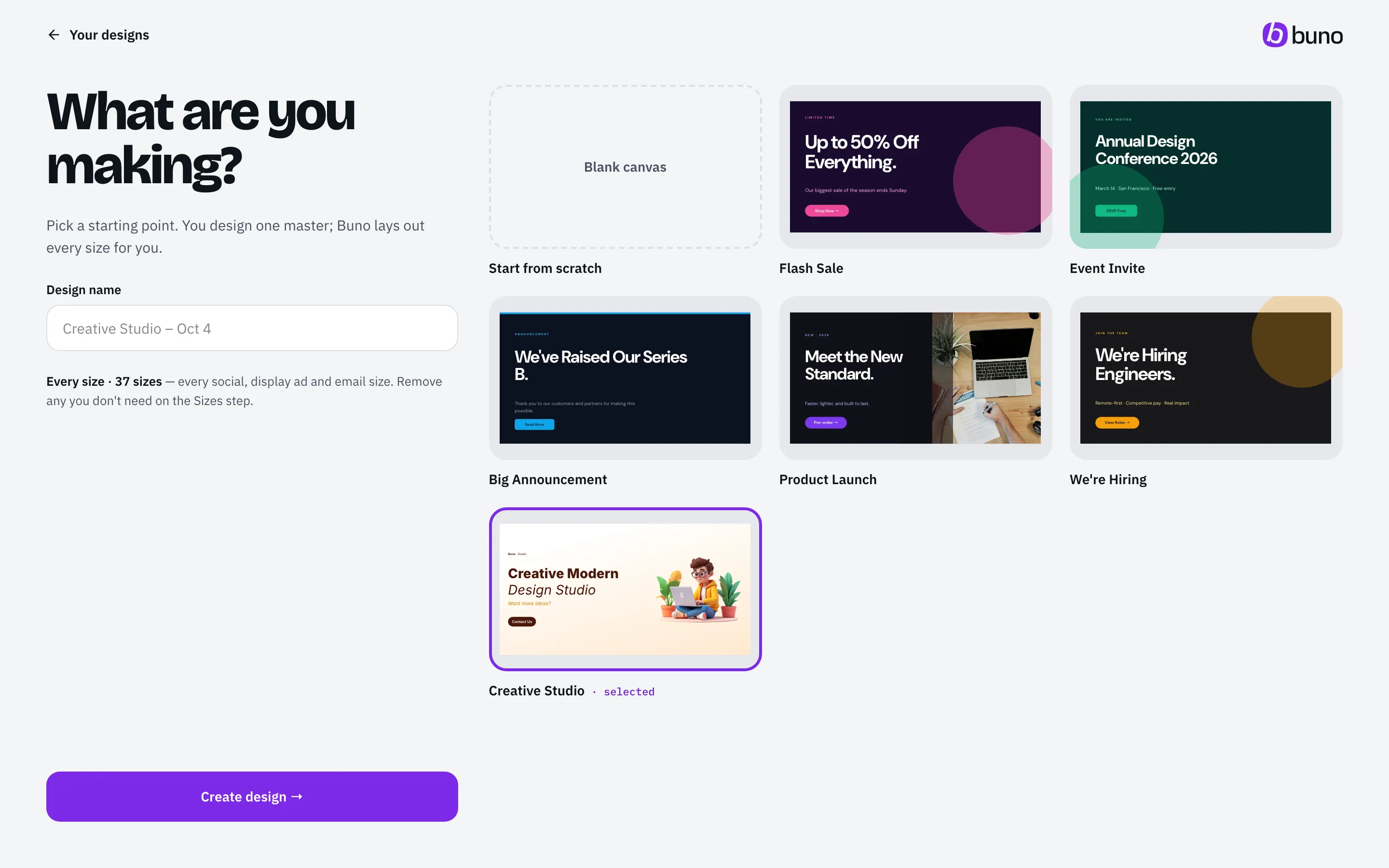
Start however you like.
Blank canvas.Pick your master size and start designing.
A starter template.Begin from one of 5 starters, like Flash Sale or Product Launch.100+ campaign templatesComing soon
Your AI assistant.Ask Claude, Cursor or another MCP app to create the banner in Buno for you. ChatGPT is coming soon.
- 02
Step 2
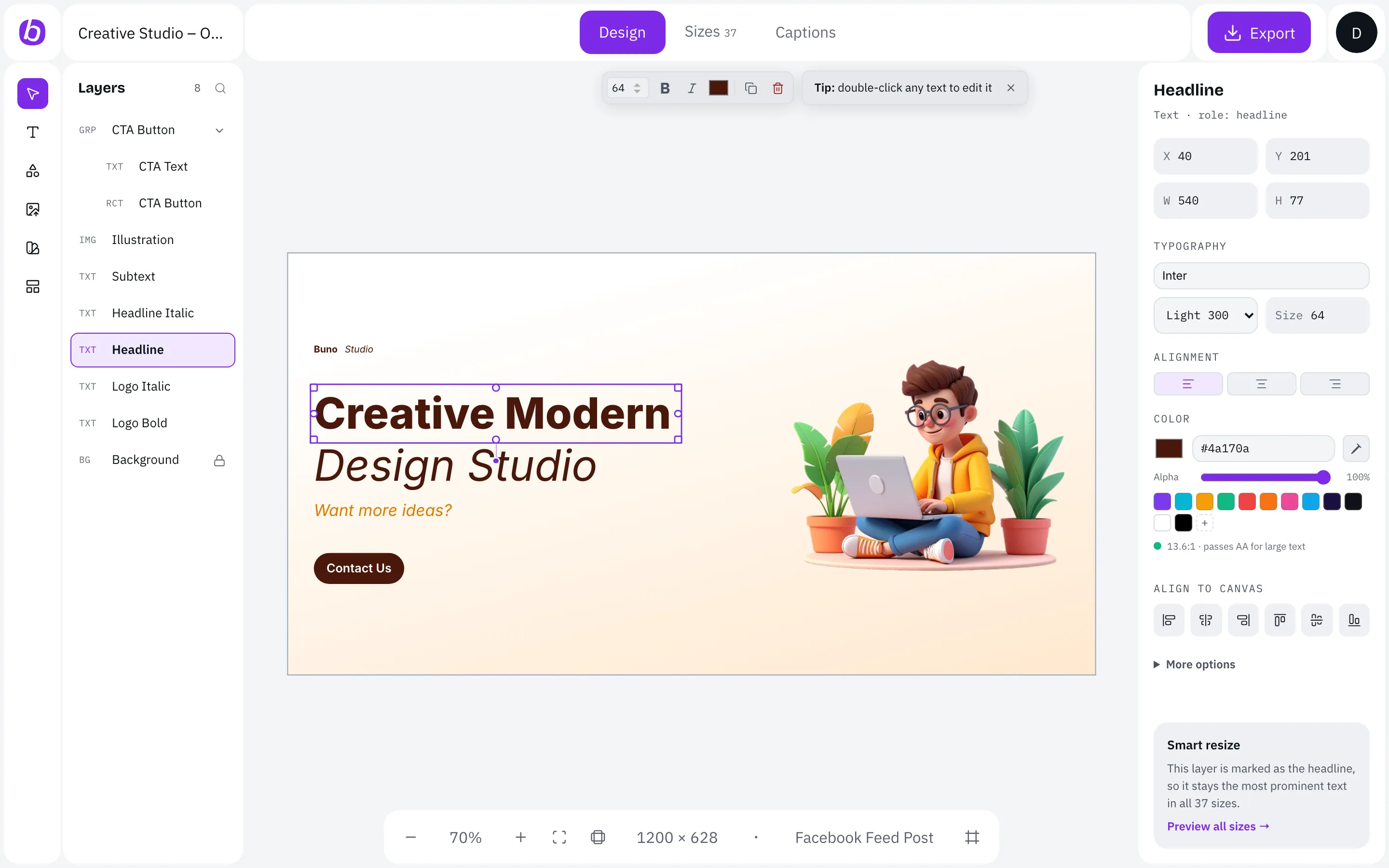
Make the one version you care about.
Add your headline, images, logo, button and brand colours. This is the only design you build by hand.
Name your layers like "Headline" or "Logo"? You don't have to. Buno figures out what each element is.
- 03Started in your AI assistant? You join here.
Step 3
Pick platforms, not pixels.
Tick the sizes you need or choose a quick pack:
- Social essentials8
- Stories & Reels3
- Display ads9
- Email4
- Every size37
Buno then lays out each size for its shape, keeps text in the safe zones and fixes contrast.
Animation: in Buno's Add sizes drawer, the Social essentials pack adds 8 sizes, then Display ads adds 9 more, for 17 sizes selected.
- 04
Step 4
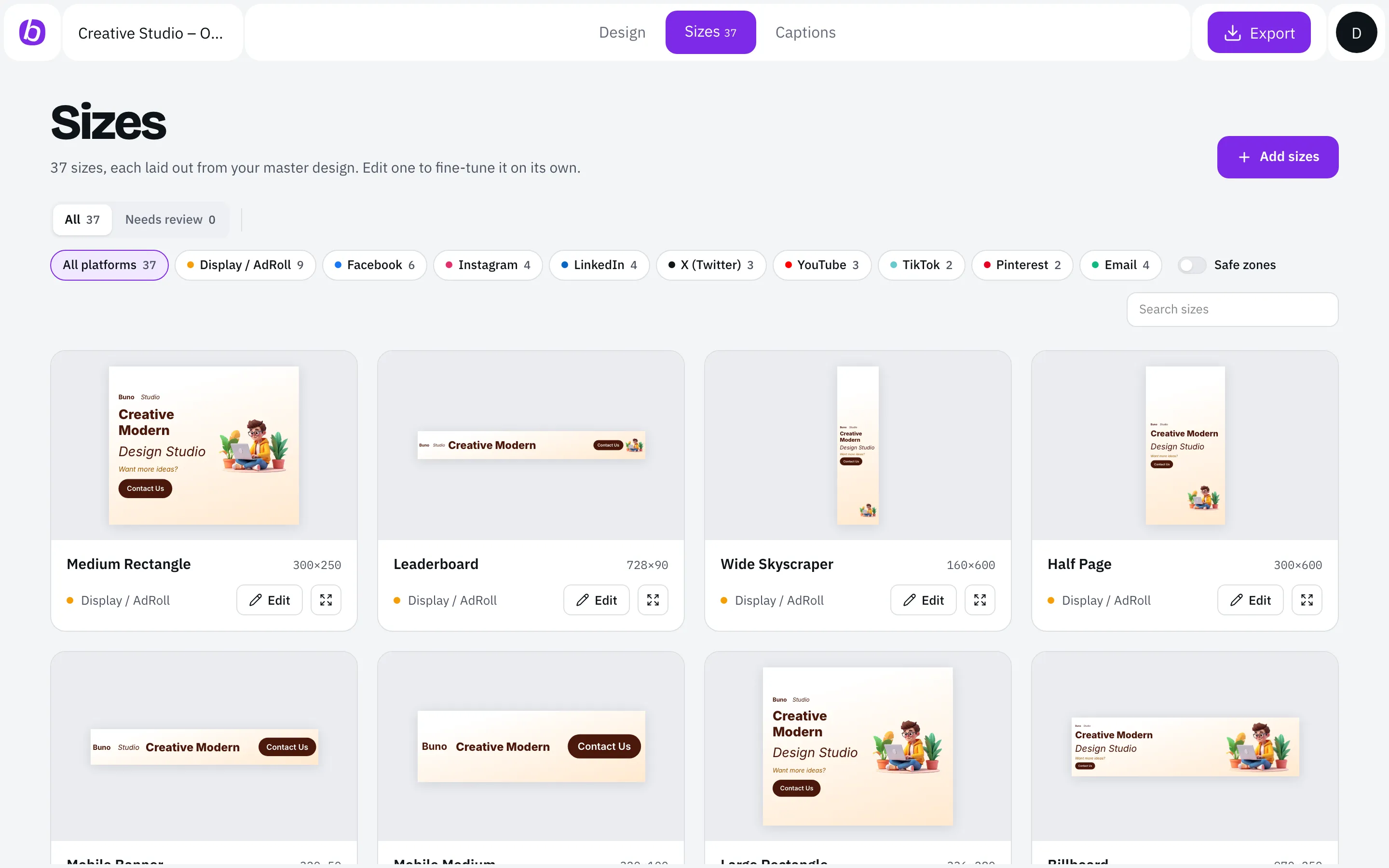
Check the grid. Download the lot.
See every size side by side. Buno flags anything that needs a look, and you can adjust any single size by hand.
Add captions, then export PNG, JPG, WebP or PDF in one ZIP. Post with the tools you already use.
Under the hood
What smart resizing actually does.
- 01
Classifies the shape. Each size is a strip, wide, landscape, square, portrait or tall layout.
- 02
Reads each element's role. Headline, subheadline, body, image, logo, button, background.
- 03
Rebuilds the layout. Elements are placed for the shape, not scaled down.
- 04
Trims by priority. Body text first, image next. Headline, logo and button stay.
- 05
Checks safety. Safe zones and WCAG AA contrast on every size.

1200×628Facebook feed post
See it with your own design.
Make one master banner and get every size you need.
Free to start. No credit card. No design skills needed.